

What is this feature?
The Doc Editor is a writing panel built into Playlab apps that lets you create documents without leaving the platform. You can type directly into the editor, use the AI chat to generate content, or combine both approaches, then export your finished document as a DOCX file or PDF. The Doc Editor supports rich formatting including headings, bold, italic, bullet points, numbered lists, tables, and checkboxes, giving you everything you need to produce polished, structured documents from your AI conversations.Why is this useful?
Creating documents from AI conversations usually means copying and pasting between tools, reformatting content, and losing context along the way. The Doc Editor eliminates that friction by letting you generate and refine documents right where the conversation happens. No switching tabs, no lost formatting. Because the editor lives alongside the AI chat, you can ask the AI to draft, edit, or restructure your content at any point. Need a table added? Want to change the tone of a paragraph? Just ask. The AI works directly in your document so you can iterate quickly without starting over. The editor also supports structured formatting like tables, lists, headings, and checkboxes, so your documents come out polished and organized. When you’re finished, export the document as a DOCX file, ready to share, print, or continue editing in Word or Google Docs.Watch Doc Editor in Action
How do I use the Doc Editor?
1
Enable the Doc Editor in your app
In the app builder, open the Tools panel and toggle on Doc Editor. This makes the Doc Editor available to users when they open your app.
2
Open the Doc Editor panel
Click the Doc Editor icon in the chat window. This opens a blank document panel alongside your conversation.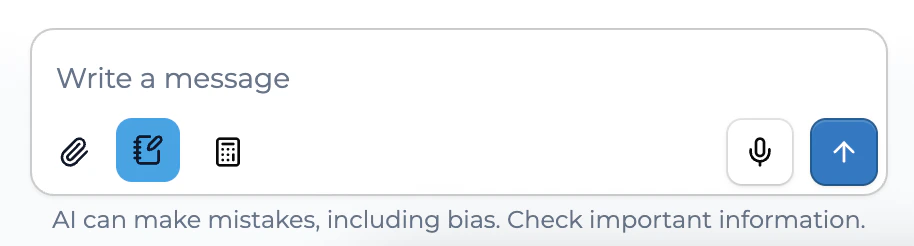
3
Create your content
You have two options:
- Type directly into the document panel to write and format content yourself
- Use the AI chat to generate content. Ask for a lesson plan, table, schedule, or any structured document and it will appear in the editor
4
Edit and refine
Make changes directly in the editor, or ask the AI to modify specific parts of your document through the chat interface. You can format text, add tables, and restructure content as needed.
5
Export your document
When you’re satisfied with your document, click Download in the Doc Editor bar to export it as a DOCX file. You can then share, print, or continue editing in another application.
Possible Use Cases
Need some inspiration? The Doc Editor pairs AI conversation with structured document creation, making it useful across a wide range of academic and professional contexts. Here are a few ideas to get you started.Try it out
- Generate a lesson plan aligned to curriculum standards with tables for common misconceptions and strategies
- Draft a college essay using a Common App prompt and iterate on voice and tone with AI feedback
- Build a rubric for a project-based assessment with criteria, point values, and performance levels
- Create a study guide that summarizes key concepts, vocabulary, and practice questions for a unit
- Write a professional development agenda with session descriptions, time blocks, and facilitator notes
- Produce a student progress report with structured sections for strengths, areas for growth, and next steps
- Design a weekly classroom newsletter with announcements, upcoming assignments, and student highlights
- Draft a grant proposal or program summary with background, objectives, budget, and evaluation plan
- Generate a meeting agenda or minutes with action items, owners, and deadlines
- Outline a research paper with an annotated bibliography, thesis statement, and section summaries
Tips and Best Practices
Clear and Start Fresh
Type “clear” in the chat to reset your document and start over. You can also start a new session for a completely fresh workspace.
Use Tables
The Doc Editor supports table creation. Ask the AI to organize information into tables for cleaner, more structured documents. Great for lesson plans, schedules, and comparison charts.
Iterate with AI
Don’t try to get it perfect in one go. Start with a first draft from the AI, then ask follow-up questions to refine specific sections, add detail, or change the tone.
Be Specific in Requests
The more specific your request, the better the output. Instead of “make a lesson plan,” try “create a 5th grade math lesson plan on fractions with a table showing common misconceptions and strategies.”
Known Limitations
- No color or text highlighting support
- Cannot change fonts
- Links do not work in the document editor (external links or breadcrumb links)
- Strikethrough is not supported
- No math LaTeX display support
- Checkboxes work in the editor but do not carry over to DOCX export
- Images and videos only work with publicly hosted URLs. Private or local file links will not display in the editor
- Some messages may not trigger live doc editing. If this happens, try re-entering your request
Frequently Asked Questions
How do I enable the Doc Editor in my app?
How do I enable the Doc Editor in my app?
The Doc Editor is available as a tool that can be enabled in the app builder. Toggle the Doc Creator tool on in your app’s settings, and the Doc Editor icon will appear in the chat window for users.
Can I edit the document after the AI generates it?
Can I edit the document after the AI generates it?
Yes! The document is fully editable. You can make changes directly in the editor panel. You can add text, adjust formatting, rearrange content, or delete sections. You can also ask the AI to make specific changes through the chat.
What file format does the export use?
What file format does the export use?
Documents export as DOCX files, which are compatible with Microsoft Word, Google Docs, and most other word processing applications.
Can I paste content into the Doc Editor?
Can I paste content into the Doc Editor?
Yes. You can paste text into the document panel and then use the AI chat to help you edit, reformat, or expand on the pasted content.
Why isn't the Doc Editor icon appearing in my chat?
Why isn't the Doc Editor icon appearing in my chat?
Make sure the Doc Creator tool is enabled in your app’s builder settings. In some cases, particularly with Python-based or data analysis apps, the icon may not appear. Try toggling the tool off and on again.
We want your feedback! The Doc Editor is a new feature and we’re actively improving it based on how you use it. If you have ideas, run into issues, or want to share what you’ve created, reach out to us.